
Editorial • guide
Windows Firewall for Game Servers
Configure Windows Firewall rules that allow your server traffic without opening more than you need.
Why Windows Firewall matters
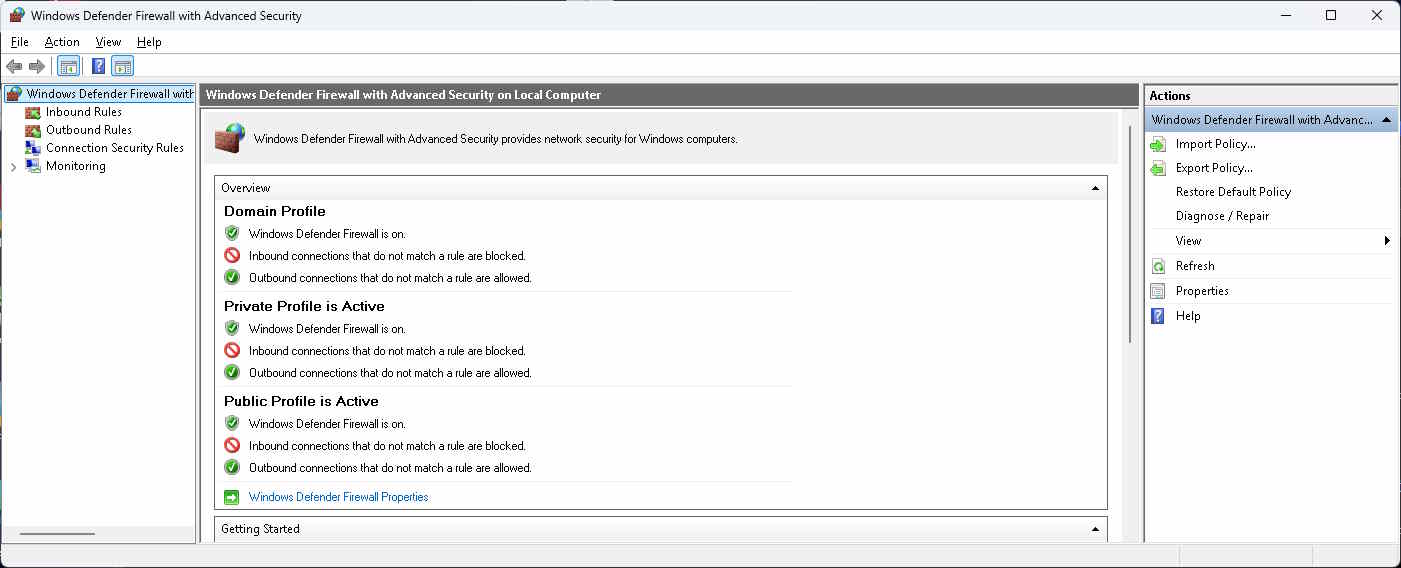
Windows Defender Firewall controls inbound and outbound network traffic on the server machine. A router port forward can be correct and players can still fail to connect if Windows blocks the game server executable or port.
The goal is not to disable the firewall. The goal is to add narrow inbound rules for the server process or ports you actually use.
Avoid the big red switch
Turning Windows Firewall off can hide the real problem and leaves the host exposed. Use a temporary disable only as a short diagnostic, then turn it back on and create a focused rule.
Create a focused inbound rule
- Open Windows Security.
- Go to Firewall & network protection.
- Open Advanced settings.
- Select Inbound Rules.
- Choose New Rule.
- Pick Port if the server uses fixed ports, or Program if you want to allow the executable.
- Enter the TCP or UDP ports required by the game.
- Allow the connection for the network profiles you actually use.
- Give the rule a clear name, such as
Valheim UDP 2456-2458.
For most home-hosted game servers, the active network should be Private, not Public. If Windows thinks your home LAN is a Public network, the firewall profile may be stricter than expected.
Rule choice
Program rule or port rule?
Both can work. Choose the rule that will be easiest to maintain.
Rule type | Use it when | Tradeoff |
|---|---|---|
Program rule | The executable path is stable and the game uses several ports | Breaks if the executable path changes |
Port rule | You know the exact ports and protocols | Still allows any process listening on those ports |
Temporary broad rule | You are diagnosing a connection problem | Remove it once you identify the real fix |
Example PowerShell rule
Run in an elevated PowerShell session and adjust the display name, protocol, and port.
PowerShell
New-NetFirewallRule -DisplayName "Game Server UDP 27015" -Direction Inbound -Action Allow -Protocol UDP -LocalPort 27015Troubleshooting checklist
If players cannot connect after creating a rule:
- Make sure the server process is running
- Verify the game port and protocol
- Check whether the rule applies to the active Windows network profile
- Confirm antivirus or endpoint software is not adding another network filter
- Test from outside your home network
- Check the port forward after confirming the Windows firewall rule
When a rule works, write it down beside your server notes. Future you will thank present you during the next reinstall.
FAQ
Common questions
Should I allow the game server app or the port?
Use a program rule when the executable path is stable. Use a port rule when the game has clear fixed ports and you want the rule to survive executable updates.
Which profile should I allow?
Usually Private is enough for a home LAN. Avoid broad Public profile rules unless the server genuinely runs on a public network profile.
Does Windows Firewall replace router port forwarding?
No. The router gets traffic to the machine; Windows Firewall decides whether that machine accepts it.
End of guide
Firewall rules are only one layer
Once Windows allows the server traffic, finish the full path by checking router forwarding, backups, and a reliable hosting plan.
Article details
Author: Eps · Editorial Team
Published: 5/8/2026
Updated: 5/8/2026
Feedback
Spotted a problem, outdated step, or missing command? Let us know and we will keep this guide accurate.
Rate this guide
Hover the stars to rate this article. Your rating is saved to your account for this page.
Click a star to leave a rating.